Install guide
How to install the /share skill
Step-by-step walkthrough with screenshots. Takes about 60 seconds.
Video walkthrough
Install path
Or add the connector
One click, no file download
sharable.link is in the Claude connector directory, so you can skip this page entirely — add it from the listing and Claude handles the rest. No Node.js, no file upload, nothing to keep running on your machine.
In Cursor, Cline, or Windsurf, point your MCP config at the same remote server — it speaks Streamable HTTP with OAuth, so there is no command to run:
{
  "mcpServers": {
    "sharable": {
      "type": "http",
      "url": "https://sharable.link/mcp"
    }
  }
}
You'll get four tools: share_html, update_page, unshare_page, and list_my_pages. Full setup guide →
2Upload it as a skill in Claude
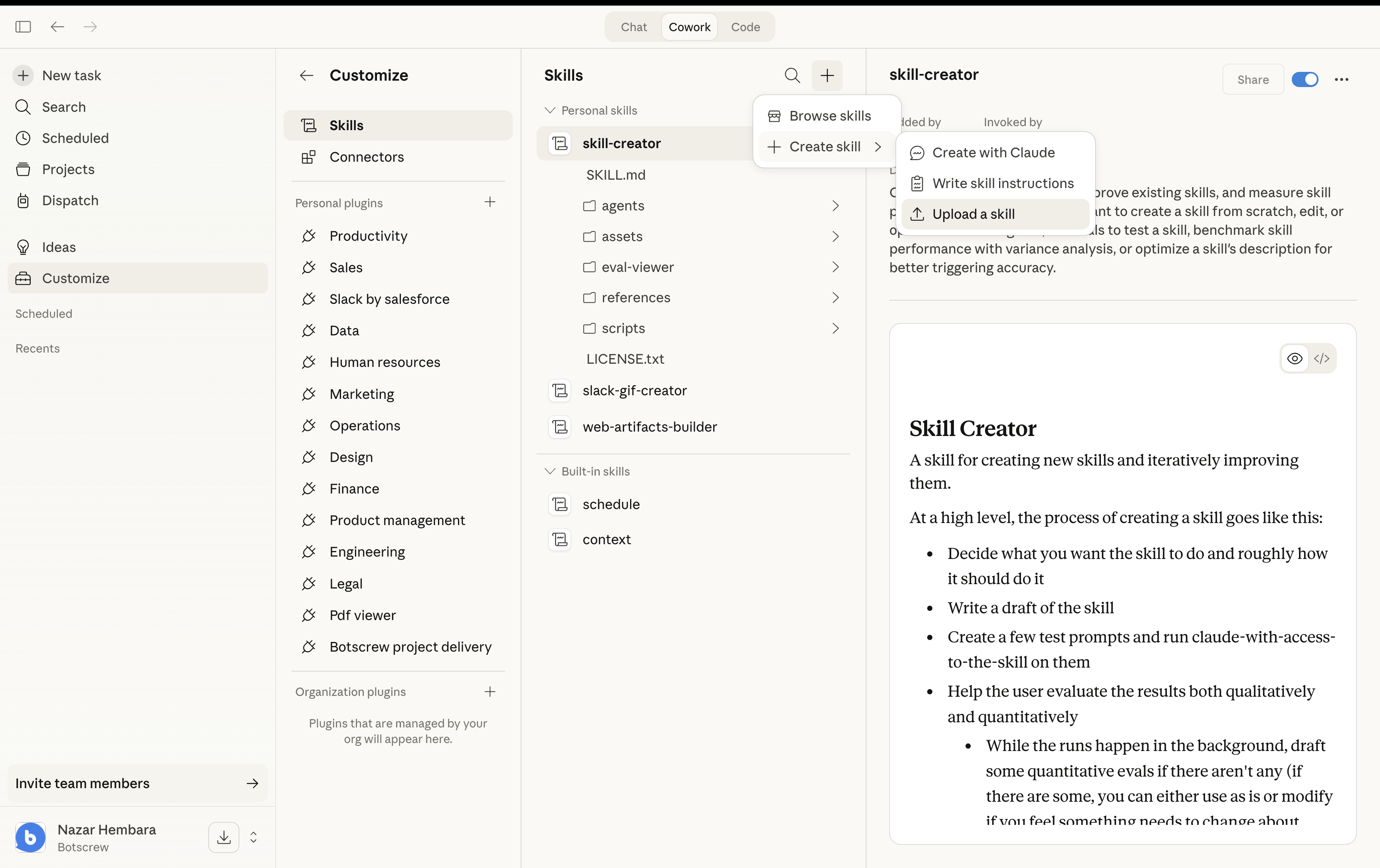
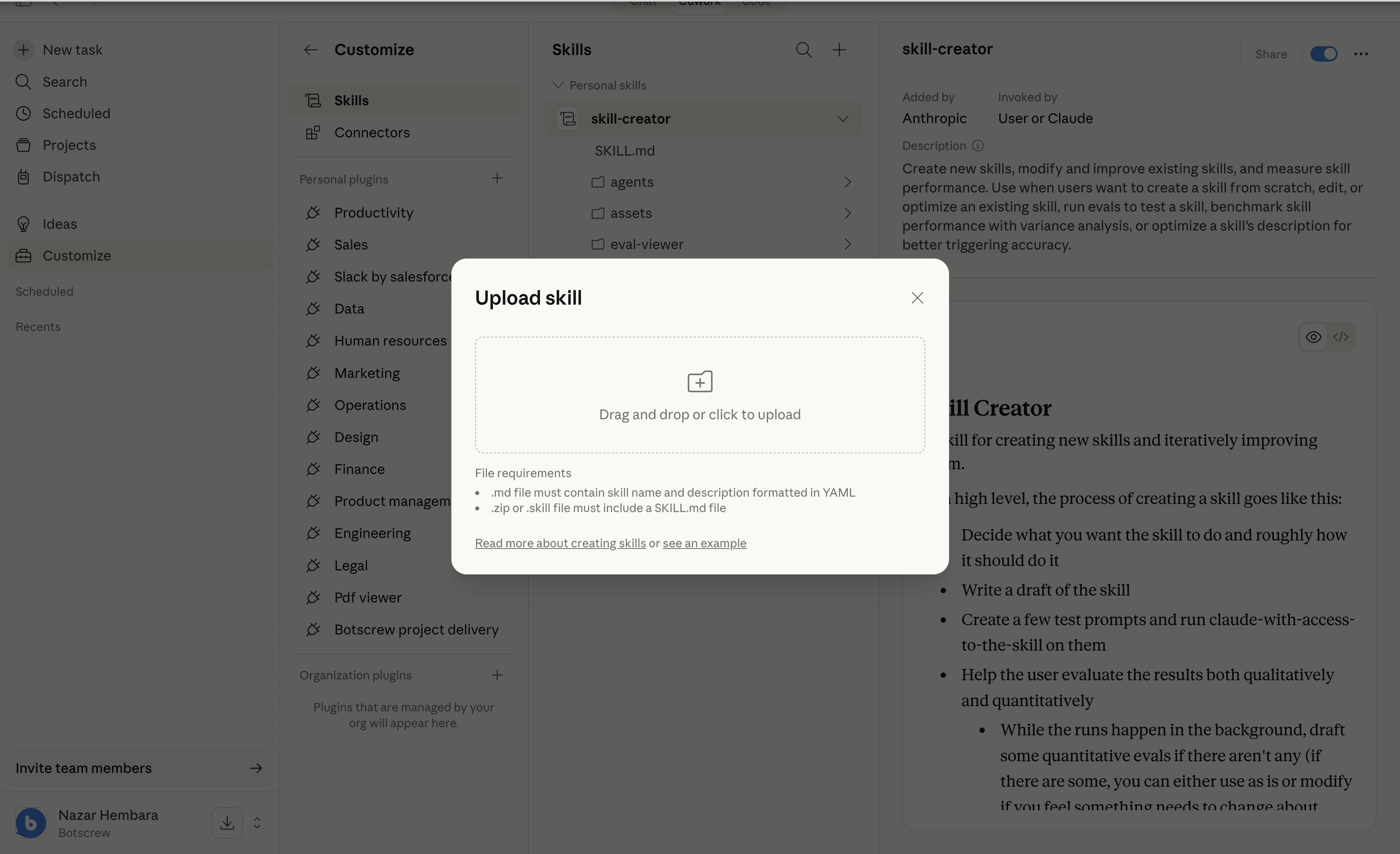
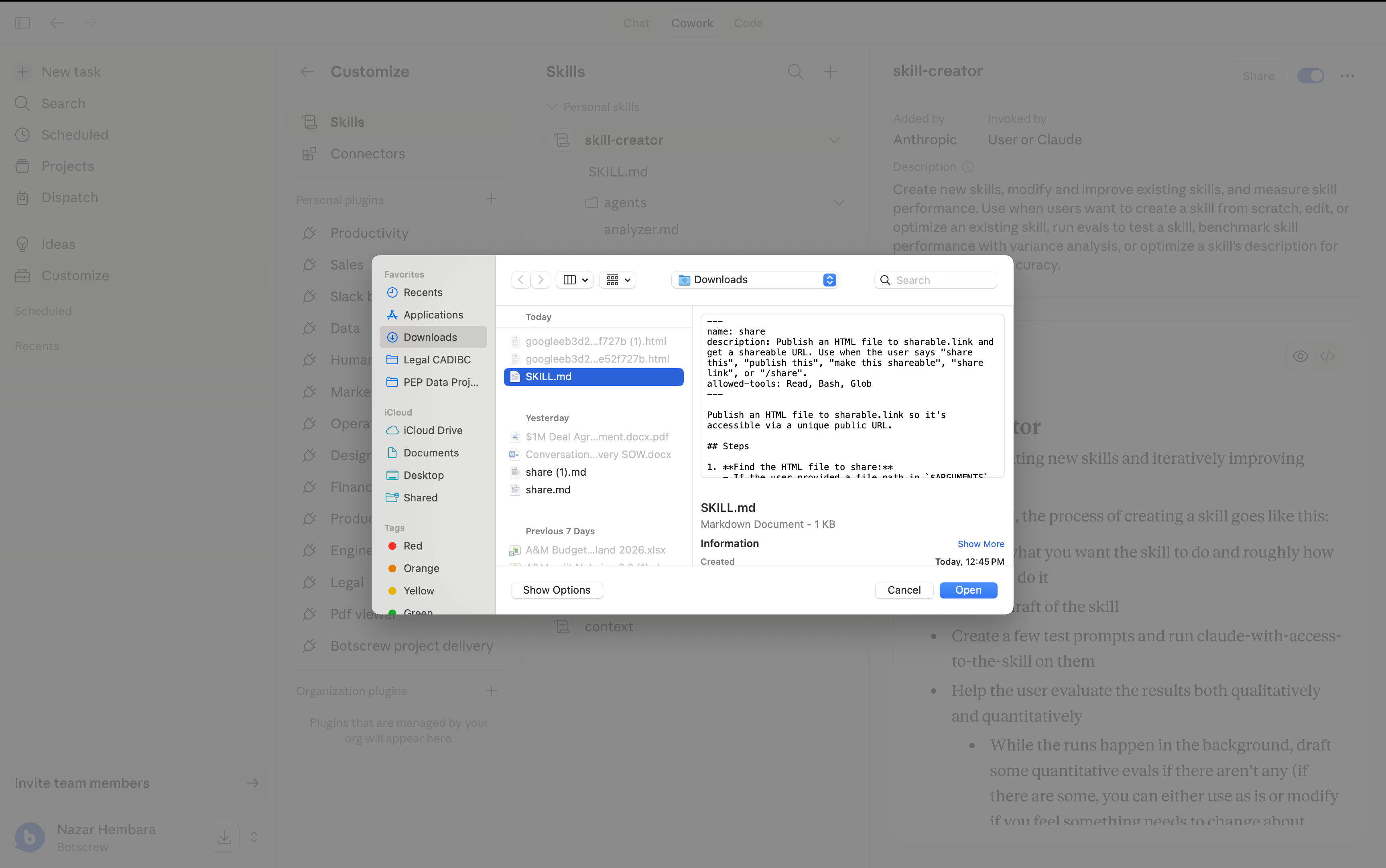
Go to Customize → Skills → + → Create skill → Upload a skill.
3The skill is now installed
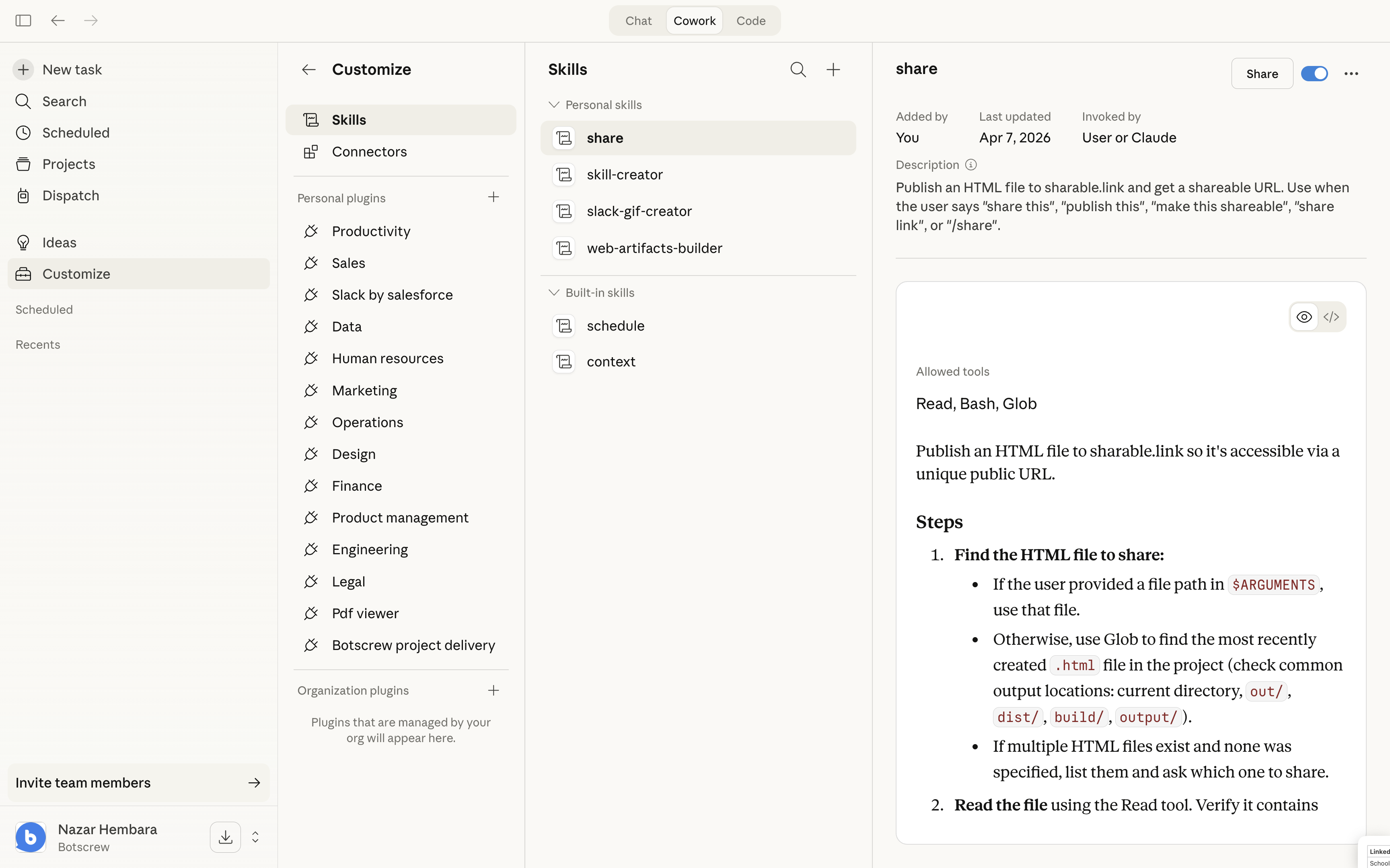
You’ll see “share” in your personal skills list, ready to use.
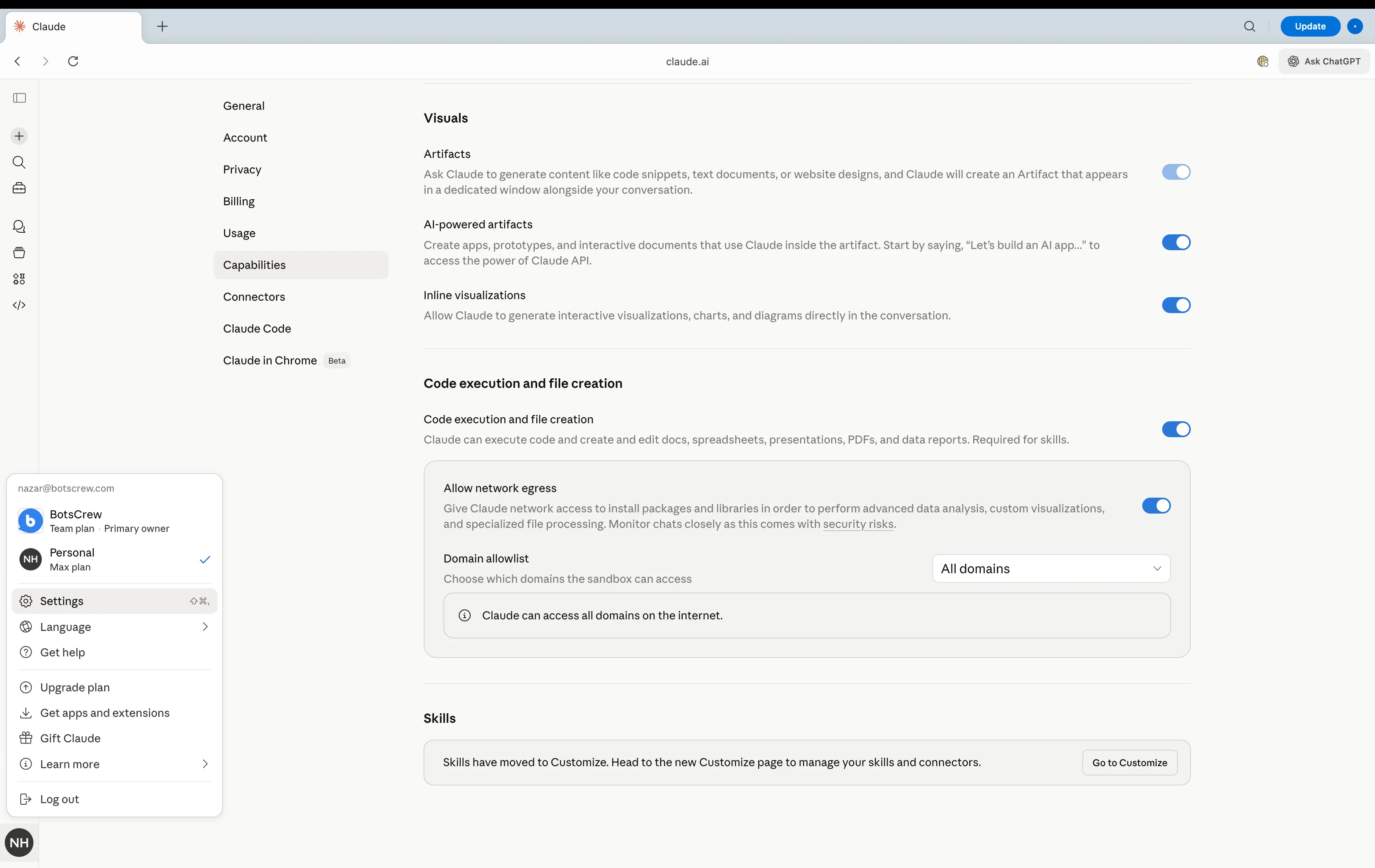
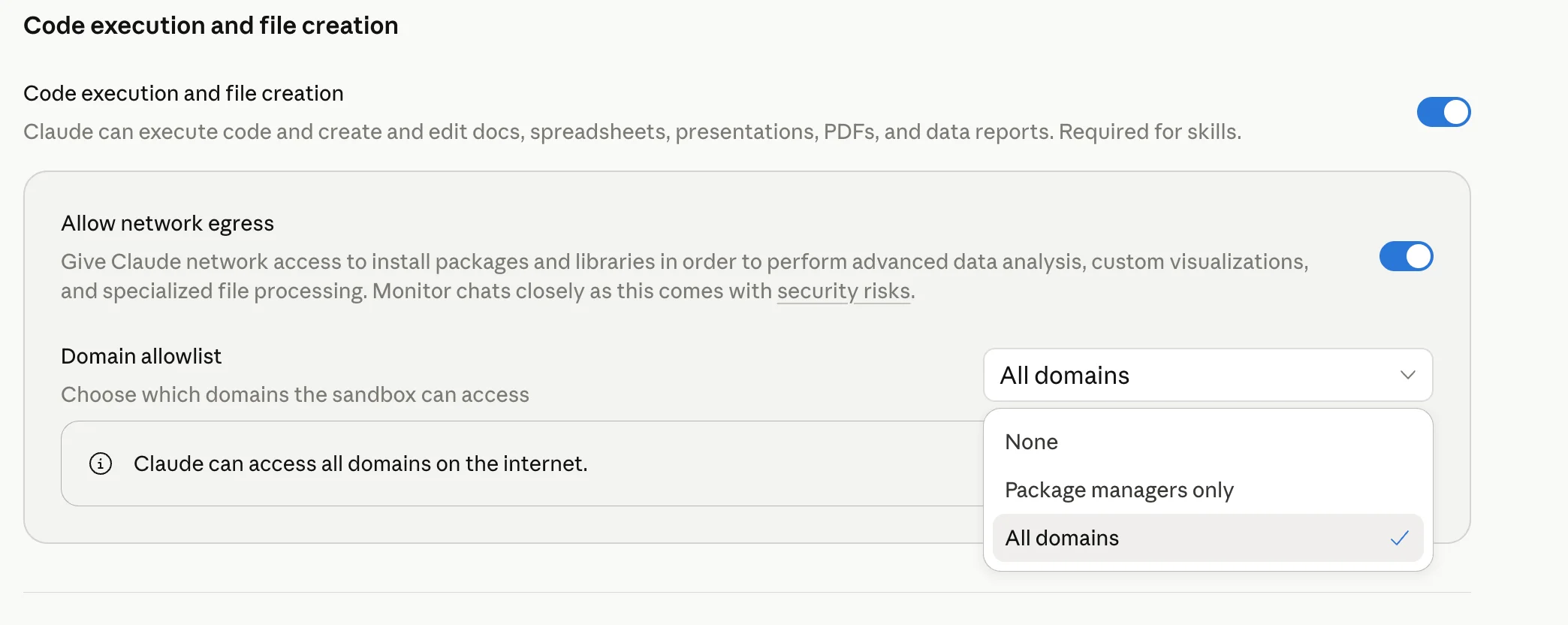
4Enable network access
Go to Settings → Capabilities. Enable “Allow network egress” and set Domain allowlist to “All domains”. Then start a new chat.
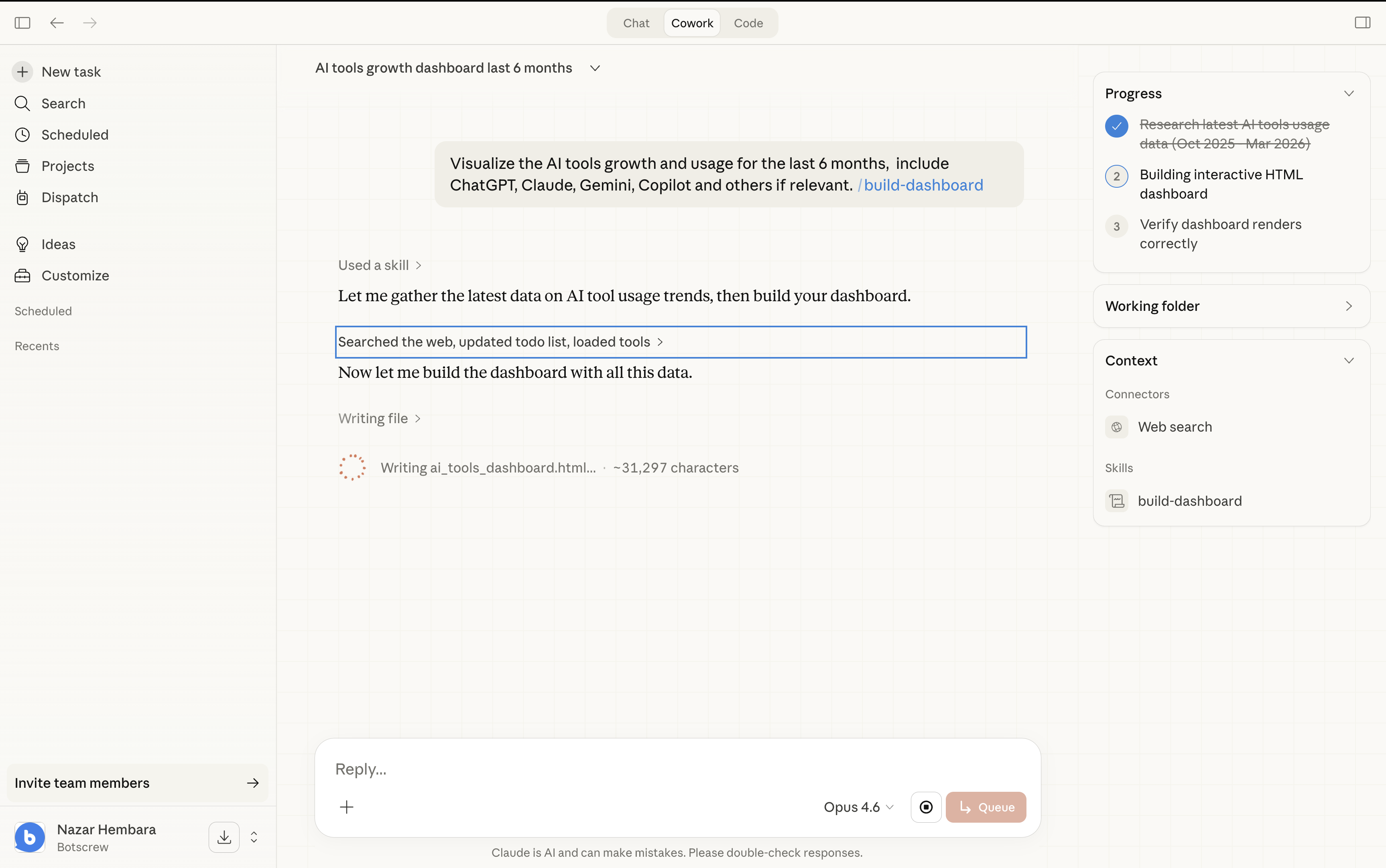
5Ask Claude to build something
Ask Claude to create a dashboard, report, landing page, or any HTML output.
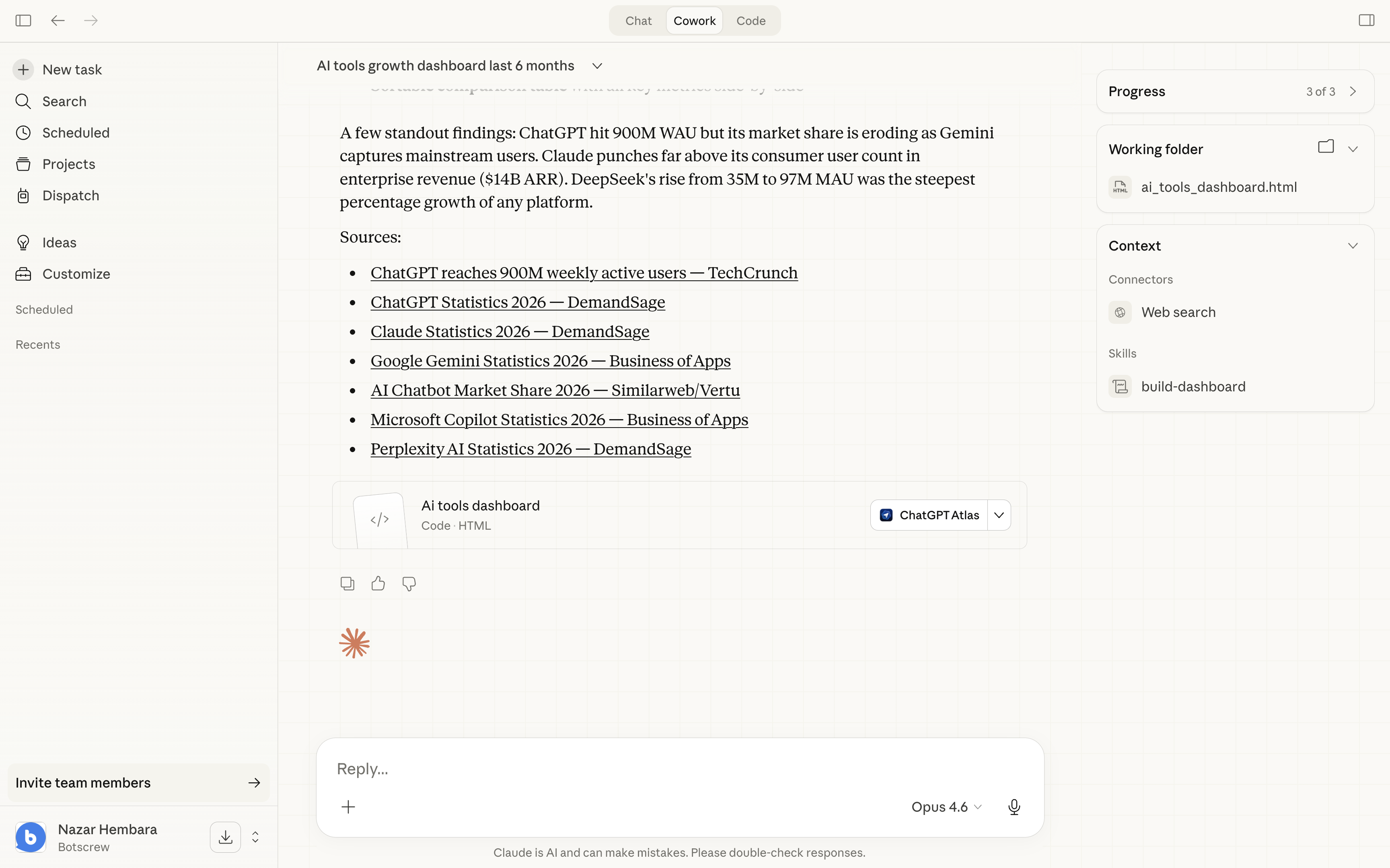
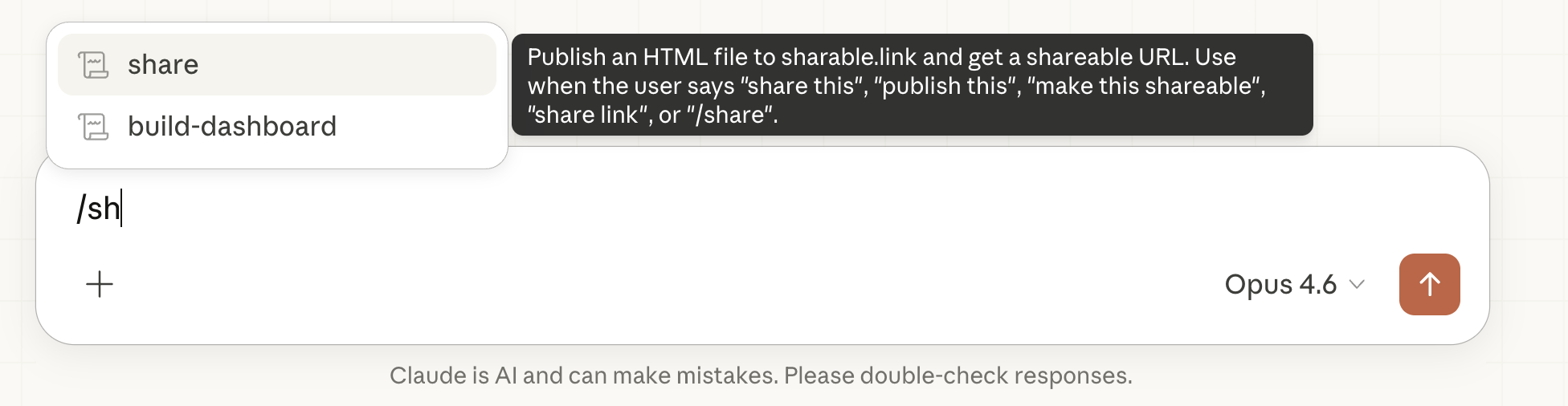
6Type /share
Start typing /sh and the share skill appears. Hit enter to run it.
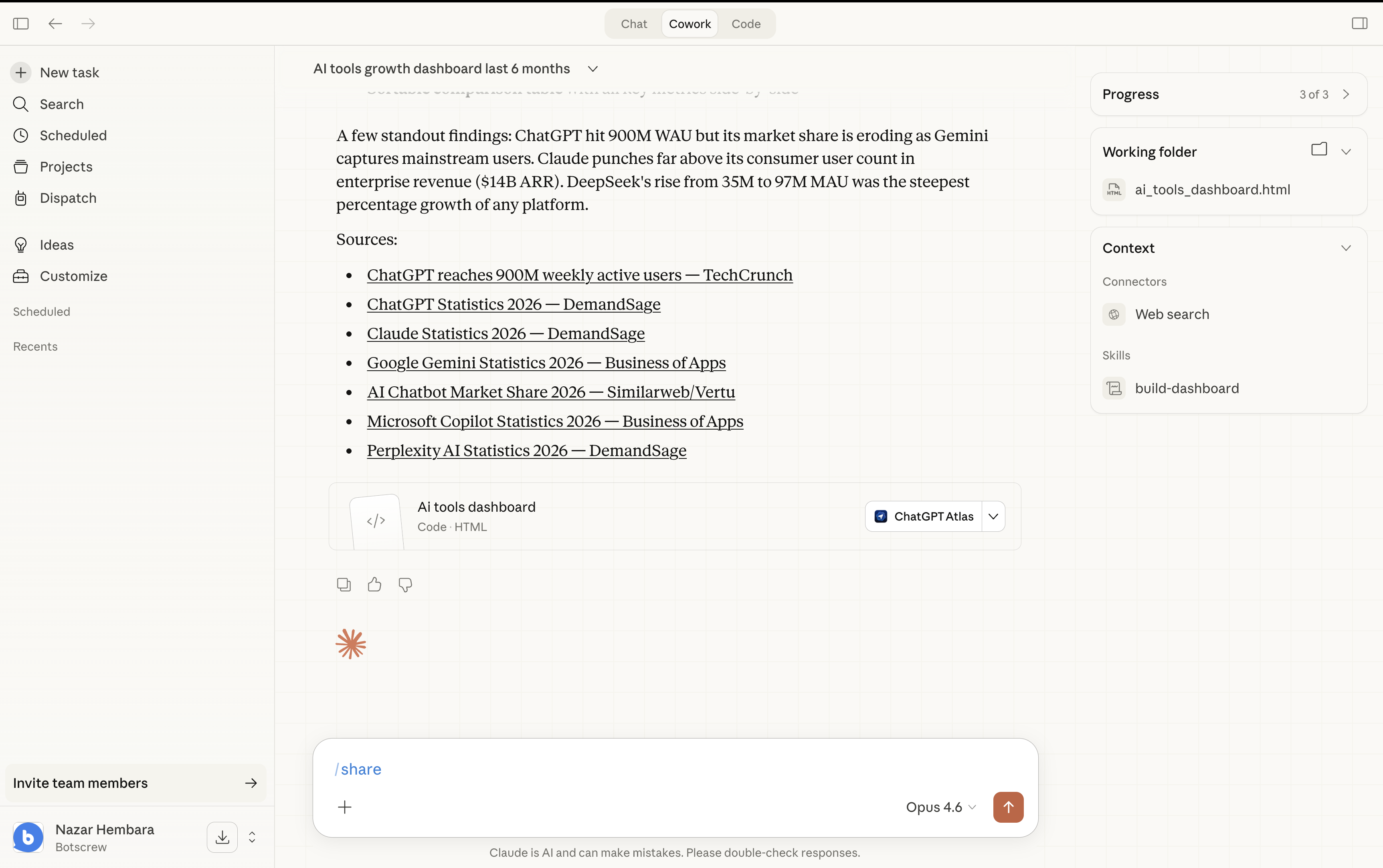
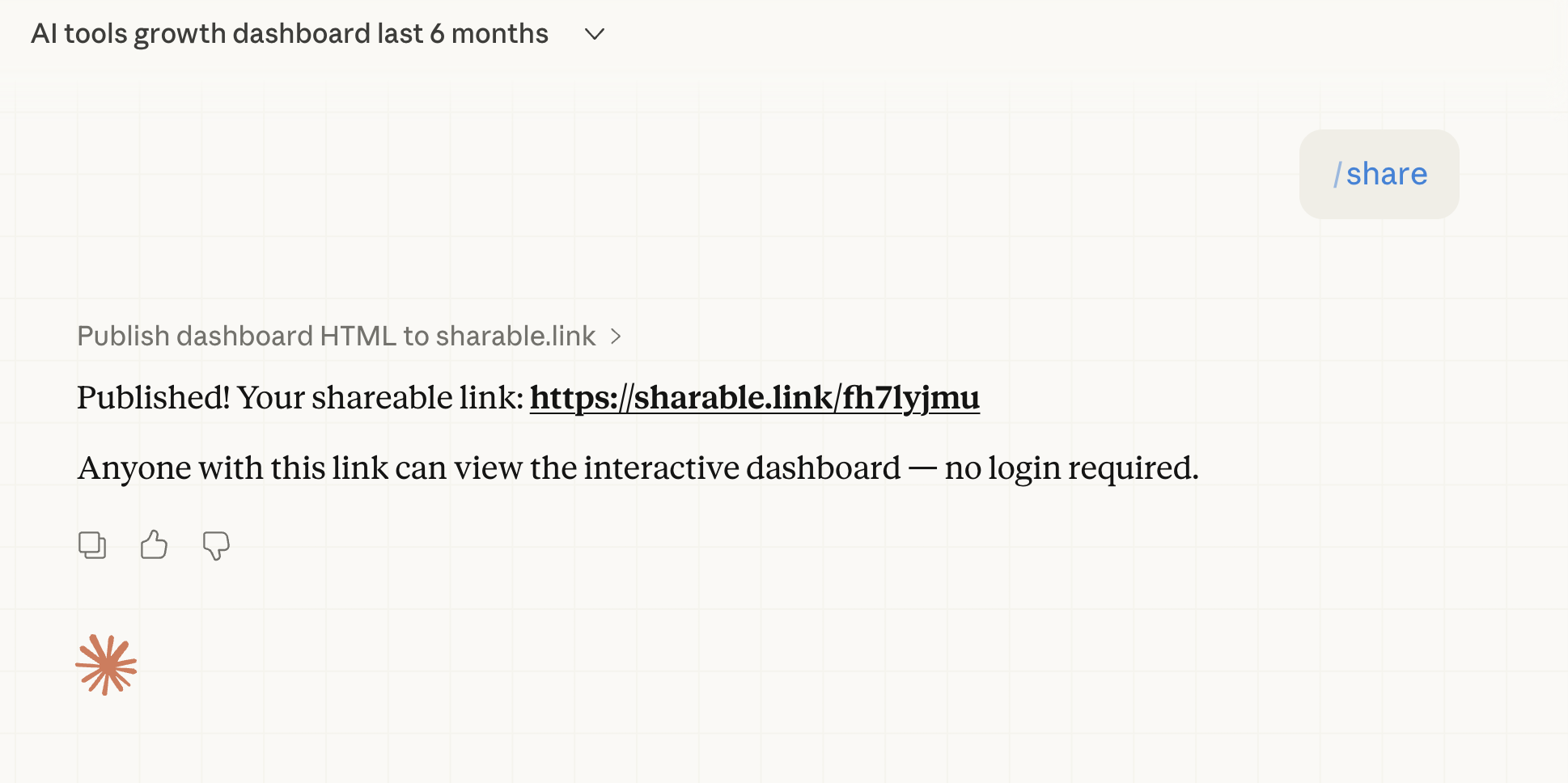
7Get your shareable link
Claude publishes the HTML and gives you a clean URL. Anyone can open it — no login needed.
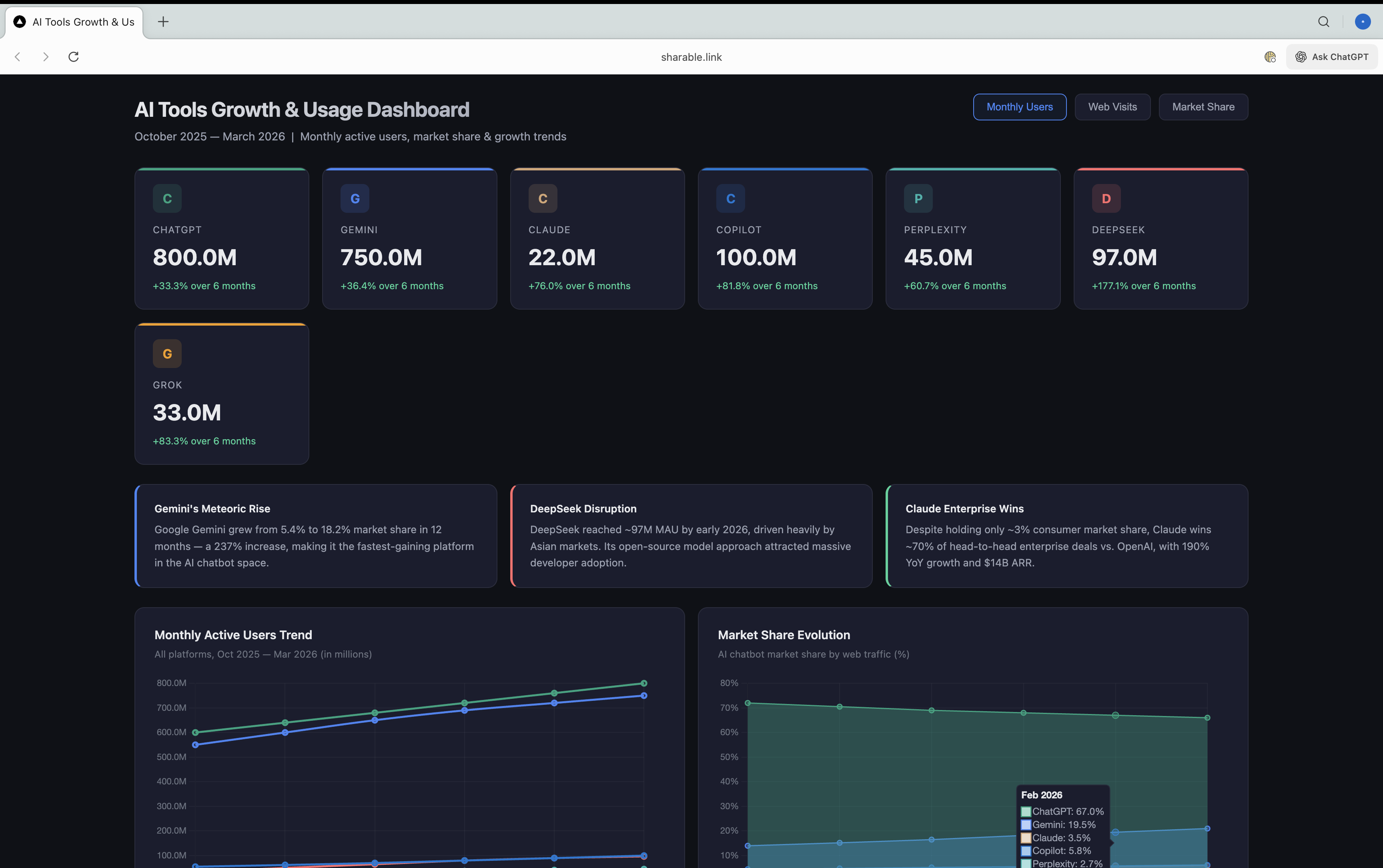
8Anyone can view the result
Getting a network error?
If the skill fails with a network or allowlist error, your Claude sandbox is blocking outbound requests. Quick fix:
- Go to Settings → Capabilities
- Enable Allow network egress
- Change Domain allowlist to All domains
- Start a new chat — settings don't apply to the current conversation